
Create and maintain publication lists for the first time
On this page, you will find information on how to create your publication list for the first time, maintain it on an ongoing basis, and keep it up to date.
Enter or import publication information
Here you will find various options for entering your publication information into the system. We recommend using the ‘Service Publication Import’.
Recommended: Use the University Library's publication import service
- as a file.
- enter the link to your publications (e.g. on your personal website) in the comment field.
- indicate in the comments field whether your data should be imported from Web of Science, PubMed, ORCID or Google Scholar.
The University Library accepts bibliographies in Word, text and Excel file formats. You are also welcome to send data in BibTeX format. To do so, please first save the data as a text file (.txt) and upload it to the research information system.
How to use the publication import service:
- Log in to CRIS. Instructions on how to do this can be found here.
- Click on the ‘Add new’ button in the top right-hand corner of the overview page. Then click on ‘Contributions’.
- In the menu that appears, click on ‘Service Publication Import’.
- In the ‘To do by’ input field, you can specify a date by which you would like your order to be completed.
- You can also enter a publication list in the form or enter a link that refers to a publication list that employees should enter in CRIS.
- Enter publication list: Under ‘File upload’, click on the blue button with the folder icon to select a file for upload.
- Link to publication list on the web: Under ‘Message to the staff in the University Library’, you can send a message with further information to the University Library staff or enter the link to your publications, e.g. on your personal homepage, in Web of Science, Google Scholar, etc.
- Please click on ‘Save’.
- To send the data to the University Library and complete your service request for publication import, click on ‘Save & close’ in the pop-up window.
- Please log out.
Import from Web of Science, PubMed or ORCID
If you have stored information in Web of Science and PubMed or Web of Science and ORCID, we recommend using Web of Science here because of the better data quality in the source system.
- Click on the 'Add new' button in the top right-hand corner of the overview page.
Then click on 'Contributions'. - Click on 'Outputs' in the drop-down menu.
- Click on 'Importort from'
- Select 'external source'
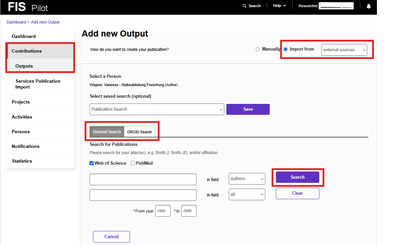
- In the input mask that appears, please select either:
- ‘General search’ if you want to import information from Web of Science or PubMed. Then enter your Web of Science Researcher ID in the search field and select ‘Researcher ID’ from the drop-down menu.
- or ‘ORCID Search’ and enter your ORCID ID in the corresponding field. The ORCID ID is automatically added if you have already specified it in your personal data record.
- After entering additional search parameters, please click on the ‘Search’ field. A list view will be displayed showing all publications found in the respective database.
- Here you now have the option of either selecting individual publications to import, or clicking on the box next to ‘Publication data’ to select all publications displayed.
- Once you have made your selection, please click on ‘Validate’ at the bottom of the page. The system will automatically perform a duplicate check.
- If no duplicates are found, you can click directly on ‘Confirm’.
- If the publications to be imported are potential duplicates or are already linked to your profile, the system will display a corresponding message after the validation step.
- Once the import is complete, the publication data will be sent to the University Library for validation. The publication will appear in your list menu, but you will no longer be able to edit it there. If you discover any errors, you can send these notes to the library via a corresponding change notification.

Import from Google Scholar
It is unlikely that Google will provide an import interface for the JLU-CRIS in the future. This means that any changes to the Google Scholar publication list must also be reported to your own university each time. Although Google Scholar is a useful tool for making your own publications visible, it is not designed to be linked to university information systems.
- Follow these steps in Google Scholar:
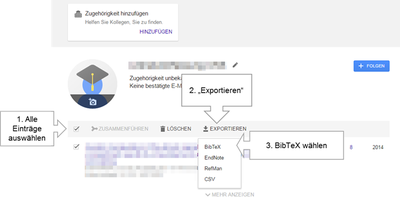
- Select the publications you want to export.
- Click on 'Export'.
- Select 'BibTeX' as the format.
- The results will now appear in a new window.
- Copy the entries completly into a text editor (e.g. Windows Editor).
- Save this file with the file extension '.bib'.

To import the saved file, please follow the instructions for importing files. (Further down on this
page, under ‘Transferring the publication list from Citavi or a BibTeX file’.)
Transferring the publication list from Citavi or BibTeX file
If you already have a BibTex file that you would like to import, please skip to the instructions for importing files.
If you want to export your BibTex file from Citavi before importing it into the system, first follow these steps:
- Open Citavi and click on 'File' in the top left corner
- Select 'Export'
- In the menu field, you can decide whether you want to export all publications or only selected titles
- In the next step, select the 'BibTex' option
- Then specify the desired storage location and other storage options. Click on 'Next' to start the export automaticallly.
Importing files into JLU-CRIS:
- Click on the ‘Add new’ button in the top right-hand corner of the overview page. Then click on ‘Contributions’.
- Click on 'Outputs' in the drop-down menu.
- At the top, you can choose between two options for the question ‘How do you want to create your publication?’. Click on ‘Import from’ and select ‘File’ from the corresponding drop-down menu.
- Now click on the ‘Upload’ button (blue button with folder icon) and select the desired file.
- The publications contained in the file will now be displayed in a list. Select the desired publications and confirm the import by clicking on ‘Import publications’.
- Clicking on ‘Review your publications’ will take you to the list view of the publications you have just imported.
- If the system detects a duplicate, it will display a warning. In this case, click on the link ‘Potential duplicate: Please review if necessary’ and select the desired option in the dialogue box that opens.
- After importing, you can first edit your publications in the CRIS before sending them to the library for validation. To do this, click on ‘Contributions - Outputs’ in the menu on the left-hand side of the page. A list of your publications stored in the CRIS will open. To edit them, click on ‘Edit’. An input mask will open with all the available information.
- Once you have made all the desired changes and wish to send the publication to the library for validation, click on ‘Save' at the bottom right.
- To send the data to the University Library and complete your service request for publication import, click on the blue ‘Done’ button in the pop-up window.
Transfer of the list of publications from my personal website
- On the overview page, click on the blue button ‘Add new’.
- In the menu that appears, click on ‘Contributions’ and then on ‘Service Publication Import’.
- Enter the link to your personal website from which you want to import your publications in the comment field at the bottom of the page, under the heading ‘Message to the staff of the University Library’. If necessary, you can add further comments in this field
- In this case, it is not necessary to upload a file.
- If you wish, you can specify a date by which you would like your order to be completed.
- Once you have entered all the relevant information, please click on ‘Safe and close’ at the bottom of the page
- In the pop-up window, the status ‘Publication import - Data record complete - Please import -> Forward to University Library’ is already preselected and you only need to click on ‘Done’ to send your data to the University Library.
Manual import of publications
- Click on the ‘Add new’ button in the top right-hand corner of the overview page. Then click on ‘Contributions’.
- Click on 'Outputs' in the drop-down menu.
- At the top, you can choose between two options for the question ‘How do you want to create your publication?’. Please select ‘Manually’.
- Select the type of publication you wish to enter into the CRIS by clicking on it in the selection mask below. Clicking on the blue triangle opens further sub-items under some categories.
- An input mask consisting of three tabs for bibliographic information will open. Please fill in the three tabs; mandatory fields are marked with an asterisk. The input mask is tailored to the selected publication type. It consists of a combination of free text fields, drop-down selection lists and links.
- Link fields can be opened using a blue button with a ‘+’ symbol.
- You can search for the link by entering text and clicking on the magnifying glass symbol or by using the A-Z symbol to call up a list of all possible entries. If the required entry is not yet stored in the system, you can create this information using the grey button with the ‘+’ symbol.
- Click on 'Save and close' at the bottom right.
- Choose whether you want to send the data directly to the University Library for validation or whether you want to save the data for further processing.
- To send the data to the University Library for validation, click on ‘To the University Library for validation’ in the pop-up window and then on the blue ‘Done’ button.
- If you would like to edit the data later, first click on ‘Publication in data entry / in progress – manual’ and then on the blue ‘Done’ button.
Updating publication lists
- If you have published new publications, you can decide whether to enter the publication information yourself as described above or to use the publication import service to ask the staff at the University Library to enter the publications.
- We recommend the service publication import if the publications do not need to be entered in real time. To do so, please send your publication list or a link to your publication list to FIS.
- A file import from Web of Science, PubMed or ORCID is always suitable if you want to have the publication in the system immediately and use it. The staff at the University Library will then check the transfer again afterwards.
The option of automatically transferring publications from Web of Science to the CRIS without any action on your part, provided you have entered your Researcher ID in your personal data record, will be available in one of the next CRIS rollout stages.
Editing saved publication information
Change data
- Open the list view of your publications by clicking on ‘Contributions - Outputs’ in the menu bar on the left.
- Find the record you want to change. If necessary, use the option to filter the records.
- In the publication list, click on ‘Edit’ in the field of the publication you want to edit and make the desired changes.
Please note: You cannot change publication data that has already been validated by the University Library. If you would like to have changes made to the record, please contact the CRIS team at the University Library with your change request: fis-publikationen@bibsys.uni-giessen.de
Alternatively, you can use the ‘Send change request to the University Library’ function directly in JLU-CRIS. More detailed instructions can be found under ‘Correction of errors in validated publication records’ further down this page.
Cloning data records
- Open the list view of your publications by clicking on ‘Contributions - Outputs’ in the menu bar on the left.
- Find the record you want to change. If necessary, use the option to filter the records.
- In the publication list, click on ‘Clone’ in the field of the publication to be edited.
- The copied entry can be identified by the prefix ‘Copy_’ in the title. Open it to change the necessary information (e.g. title of the article, page numbers) and save the publication in the desired status.
Assign publication data sets to UN Sustainable Development Goals (SDGs), research projects or large-scale equipment
- Open the list view of your publications by clicking on 'Contributions - Outputs' in the menu bar on the left.
- Find the record you want to change. If necessary, use the option to filter the records.
- In the publication list, select the checkbox on the left next to one or more publications that you want to link to the same SDG or large equipment:
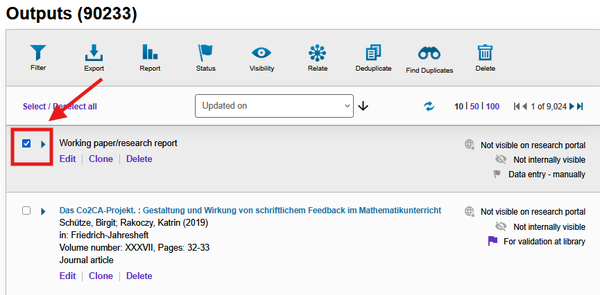
Select items - Click on the 'Relate' icon in the light grey menu bar at the top.

Relate icon
Another menu opens: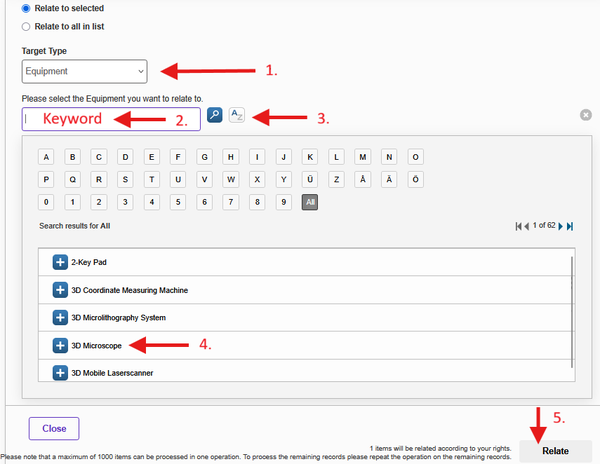
Relate equipment


- Among other things, you will be asked for the ‘Target Type’. Select ‘Sustainability Goal’, 'Projects' or ‘Equipment’ here (see point 1 in the illustration above).
- A search bar will open. Enter the device name, project title or sustainability goal in the search bar and click on the magnifying glass icon (see points 2 and 3) OR use the A-Z icon to display all devices/projects/sustainability references.
- Select an entry from the results list by clicking on the blue plus sign (see point 4).
- Click on the 'Relate' button (see point 5).
A new window will open. Click on the ‘Apply’ button in this window. The publication is now linked to the corresponding other content.
If you cannot yet see the projects you are working on in your CRIS menu, please contact fis. Thank you.
Correction of errors in validated publication records
Send change requests to the University Library
However, you can notify the University Library of your desired changes and the staff will take care of the necessary corrections.
Please follow these steps:

- After logging into the system, click on ‘Contributions’ in the menu on the left.
- In the drop-down menu, select ‘Outputs’. You will now see all publications linked to your profile in a list view.
- Click on ‘Edit’ under the publication you wish to change.
- For publications that have not yet been validated by the University Library, you can still change the data you have entered yourself.
- Once the publication has been validated, this is no longer possible.
- An input mask with three tabs will open. Under the ‘General Information’ tab, you will find a plus symbol with the heading ‘Your change request to the University Library’. Clicking on the plus symbol will open a comment field where you can enter your change requests for the University Library staff.
- You cannot edit any of the other fields.
- Once you have written your message, send it by clicking on ‘Done’.
- A new window will open with the status ‘Publication import record or change request complete – forwarded to University Library with request for import or change’ preset. Please click on ‘Done’ again here.
- You will be returned to the input screen and will now see your change request at the top of the page. Here you have the option to delete it or add another change request. Once you have finished entering your details, please click on ‘Save & Close’ in the bottom right-hand corner.
- A window will open again with the default status described in point 6. You can simply accept this and click on ‘Done’ to finally send your change request.
- The sent messages can be viewed in the menu on the left under ‘Publications’, ‘ Service Publication Import’ and the processing of the request can be tracked.
Data export and publication report
Export to BibTex format
- Open the list view of your publications by clicking on ‘Contributions - Outputs’ in the menu bar on the left.

- Click on the 'Export' icon above the list view.
- Select the publications you want to export from the menu that opens:
- Select ‘Export the selected items’ to select the publications individually in your publication list.
- Click on the filter icon (funnel) to filter entries automatically. After setting the filter parameters, click on the export icon again and select ‘Filtered/All items’ to export the filtered data records. If you do not set any filter parameters, this setting will export the entire data record.
- Select the export format ‘BibTeX’ from the corresponding drop-down menu.
- Click on the blue button labelled ‘Export’. You can save the export file in BibTeX format that opens or import it directly into Citavi.

Depending on the number of publications to be included, it may take a few seconds to generate the bibliography.
Please note that you can export a maximum of 1,000 records per export.
List export in PDF, RTF or Excel format (report)
- Open the list view of your publications by clicking on 'Contributions - Outputs' in the menu bar on the left.

- Click on the report icon at the top of the page.
- Select the desired publications from the menu that opens:
- You can either generate a report for the entire list of publications displayed or select them individually by clicking on them. You can edit the list displayed using the filter icon (funnel).
- Select the desired citation style and format by clicking on it.
- Select the desired output format
- Click on the blue button labelled 'Create report'.

Depending on the number of publications to be included, it may take a few seconds for the bibliography to be generated.
Contact
Department for Digital Research Information Systems
Dr. Rebecca Hahn and Vanessa Wagner
fis